
Deploy Community Edition on Windows
Windows one-click deployment is ideal for quickly trying out SurveyKing Community Edition v1.12.0 on your own computer. The installer is a standalone package and includes jre8, so you don't need to install Java, MySQL, or Docker.
Use Cases
- You just want to try out the system features first.
- You don’t have a cloud server and don’t want to configure a complex environment.
- You only need to provide access for a small number of people on your office local network.
Windows one-click deployment depends on this computer running. If the computer is turned off, sleeps, or the startup window is closed, it will be inaccessible.
Steps
1. Download the Installer Package
Click to download the installer package:
2. Extract and Start
Right-click the archive and select Extract to surveyking-v1.12.0. Don't just extract some of the files, or drag start.bat out separately to run it.
The extracted directory should contain these files and directories:
surveyking-v1.12.0
├── start.bat
├── stop.bat
├── readme.txt
├── jre8
└── lib
    └── surveyking-v1.12.0.jar
Open the extracted folder and double-click start.bat. Do not close the black command window that appears.
When you see text similar to the following, it indicates successful startup:
Started SurveyServerApplication in xx seconds
3. Open the System
Open your browser and enter:
http://localhost:1991
The first time you open it, you will automatically go to the /setup system initialization page.
When using Windows one-click deployment for a trial, generally select H2 embedded database. See complete initialization steps: Initialization, Backup and Upgrade.
Screenshot: The browser opens localhost:1991 and enters the /setup page, annotating the locations of "H2 embedded database", "MySQL database", and "Start initialization". Filename: windows-setup-page.png
4. Log In and Change Password
After initialization is complete, log in using the default credentials as described in Initialization, Backup and Upgrade, and immediately change your password.
Do not use the default password for a long time. If anyone can access your system, they can try to log in with the default credentials.
Stop and Restart
- Stop the service: Double-click stop.bat, or close the black window that pops up when starting.
- Restart: Double-click start.bat again.
Do not delete or move files in the extracted directory during operation. jre8 is the built-in Java environment required for startup, and lib contains the SurveyKing program package; the database, uploaded attachments, and logs may also be stored in this directory.
Modify Port
The default port is 1991. If the port is occupied or you want to change it to 8080:
1. Create a Configuration File
Create a file named:
application.properties
in the same directory as start.bat.
2. Write Port Configuration
Open it with Notepad and write:
server.port=8080
Save and double-click start.bat again.
3. Use a New Address
After changing the port to 8080, you also need to change the access address to:
http://localhost:8080
Common Questions
Why does it not go to the login page, but instead to /setup?
This is the initialization process for v1.12.0. The first time you start, the system doesn't know whether you want to use H2 or MySQL, so it first enters the /setup page.
After completing the initialization as described in Initialization, Backup and Upgrade, subsequent access to http://localhost:1991 will go to the login page.
Why does the window flash and disappear when I double-click start.bat?
Start it with the command line so you can see error messages.
Steps:
- Press
Win + R, entercmd, and press Enter. - Drag start.bat into the black window.
- Press Enter to run and view the last few lines of error prompts.
Common causes are that the archive was not completely extracted, the jre8 or lib directory was accidentally deleted, files were blocked by security software, or the port is already occupied.
Why can't my phone access http://localhost:1991?
localhost only represents the current device. The localhost on your mobile phone is your mobile phone itself, not your computer.
For your mobile phone to access your computer’s SurveyKing, you need to do this:
- Your mobile phone and computer are connected to the same Wi-Fi network.
- On your computer, press
Win + R, entercmd, and press Enter. - Enter
ipconfigand find theIPv4 Address, which is typically something like192.168.1.23. - In your mobile phone's browser, enter
http://192.168.1.23:1991.
If it still can’t be accessed, check if the Windows firewall allows Java or port 1991 access.
Why can't I open the page in my browser?
First, check three things:
- The black startup window is still there and has no errors.
- The address is written as
http://localhost:1991, don’t omithttp://. - Your computer’s security software or firewall isn't blocking port
1991.
If you have changed the port, such as to 8080, change the access address to http://localhost:8080.
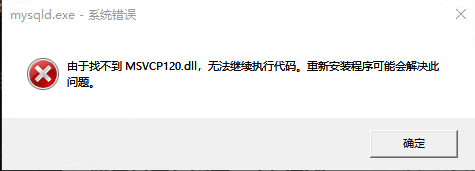
It says a dll cannot be found. What should I do?
This is usually because Windows is missing runtime components. You can fix it with a DirectX repair tool.
Download link:
https://pan.baidu.com/s/12l88ruJfwQLpCV6kHu1EzA?pwd=52pj
How do I update the Windows one-click package?
Back up your data before updating. It is recommended to extract a new version of the one-click package and import the backup after starting the new system.
See specific steps: Initialization, Backup and Upgrade.