Manually Deploy Community Edition with aaPanel
This guide details how to deploy SurveyKing Community Edition using aaPanel. This method is suitable for uploading JAR packages and completing database initialization on the /setup page.
Use Cases
- One-click deployment in aaPanel doesn't meet your server environment requirements.
- You have already obtained the
surveyking.jarfile. - You are comfortable configuring Java projects and MySQL using page prompts.
If you just want a quick deployment, first check out aaPanel one-click deployment. The manual deployment steps are more complex and have more potential issues.
Prepare Files
You only need to prepare one file:
| File | Download Address | Purpose |
|---|---|---|
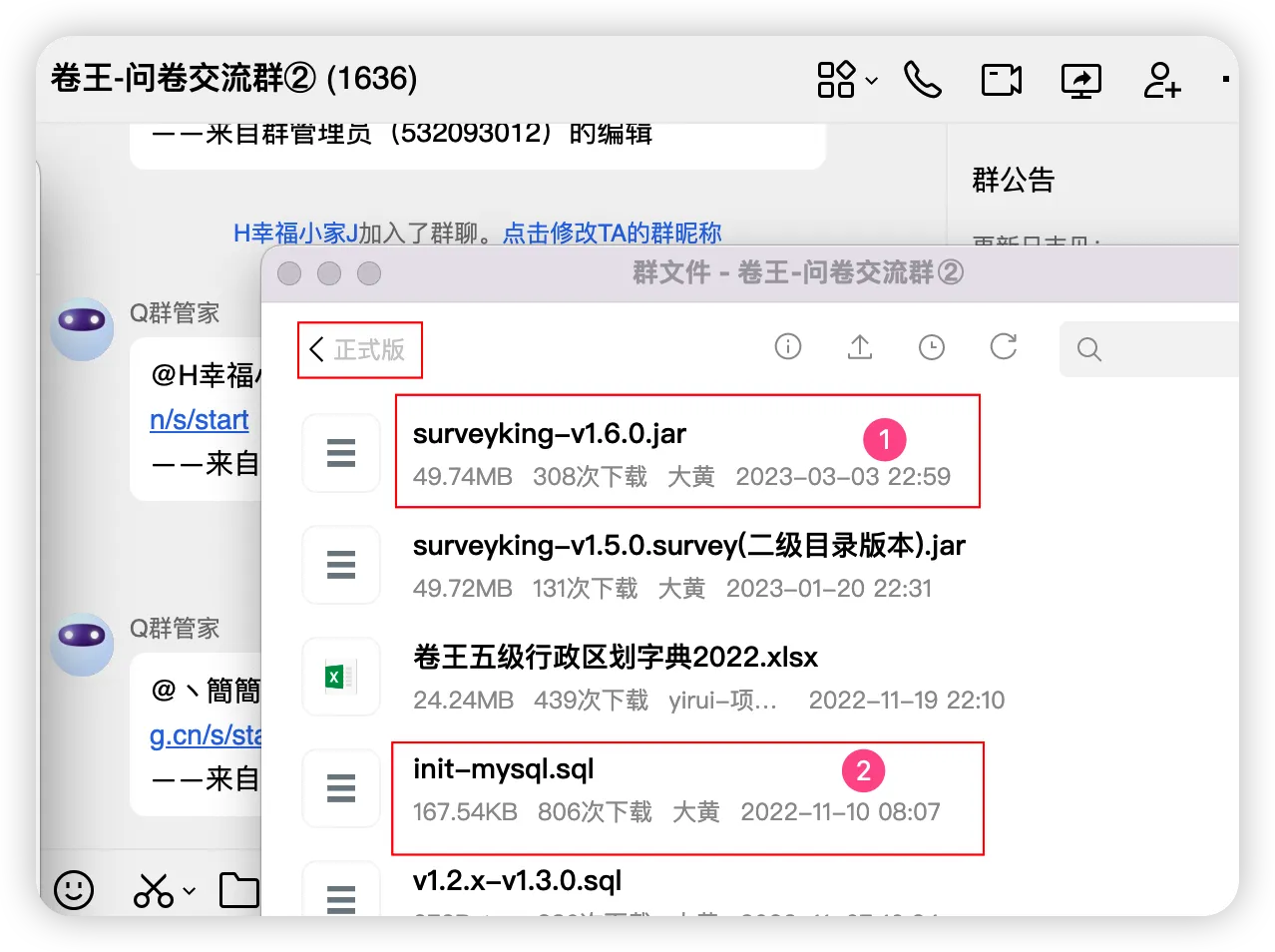
surveyking.jar | https://download.surveyking.cn/files/surveyking.jar | SurveyKing application |
Obtain it by opening the following address in your local browser:
https://download.surveyking.cn/files/surveyking.jar
For version v1.12.0, you don't need to manually import init-mysql.sql. When selecting MySQL, the system automatically initializes the database on the /setup page.
Steps
1. Install and Open aaPanel
If you haven't installed aaPanel yet, you can install it from the following link:
After installation, save the aaPanel address, account, and password.
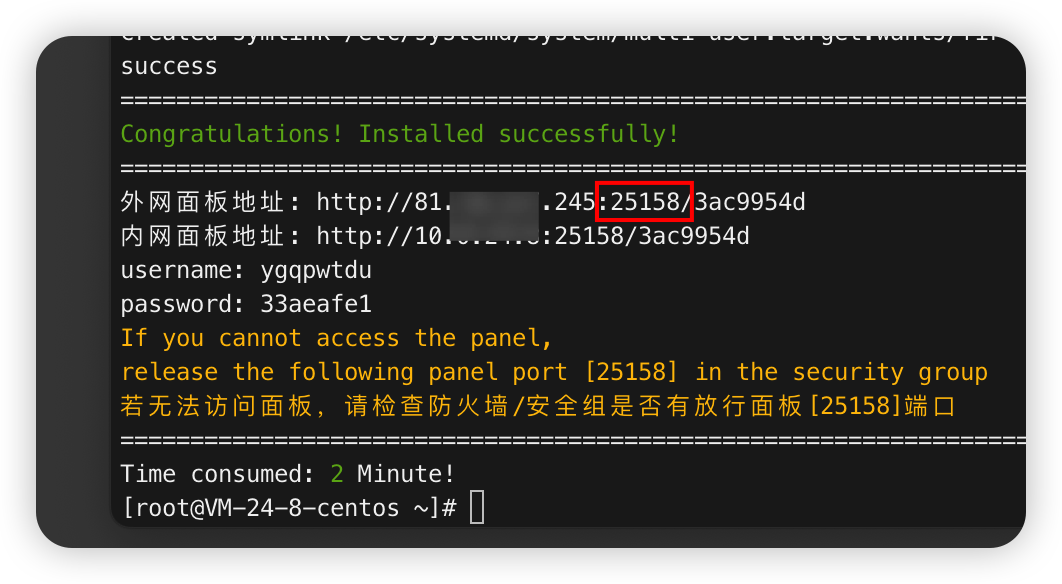
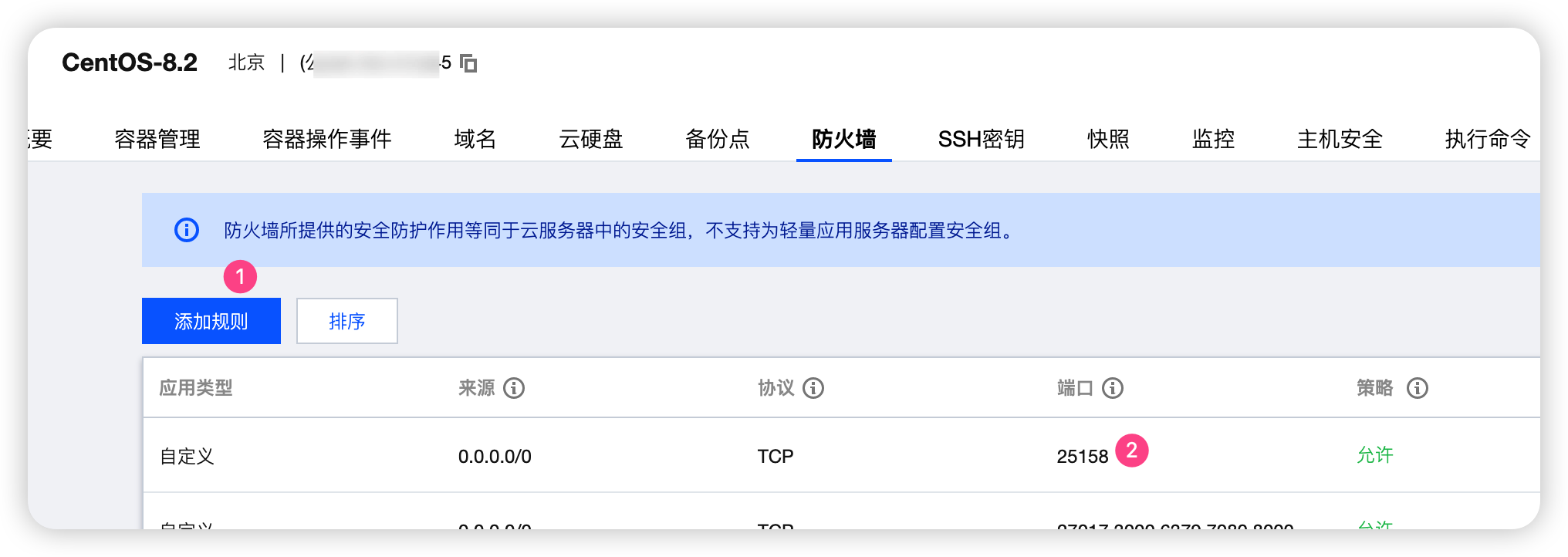
If you are using a cloud server, open the ports for aaPanel and SurveyKing in your cloud service provider's control panel.
2. Install Java Project Environment
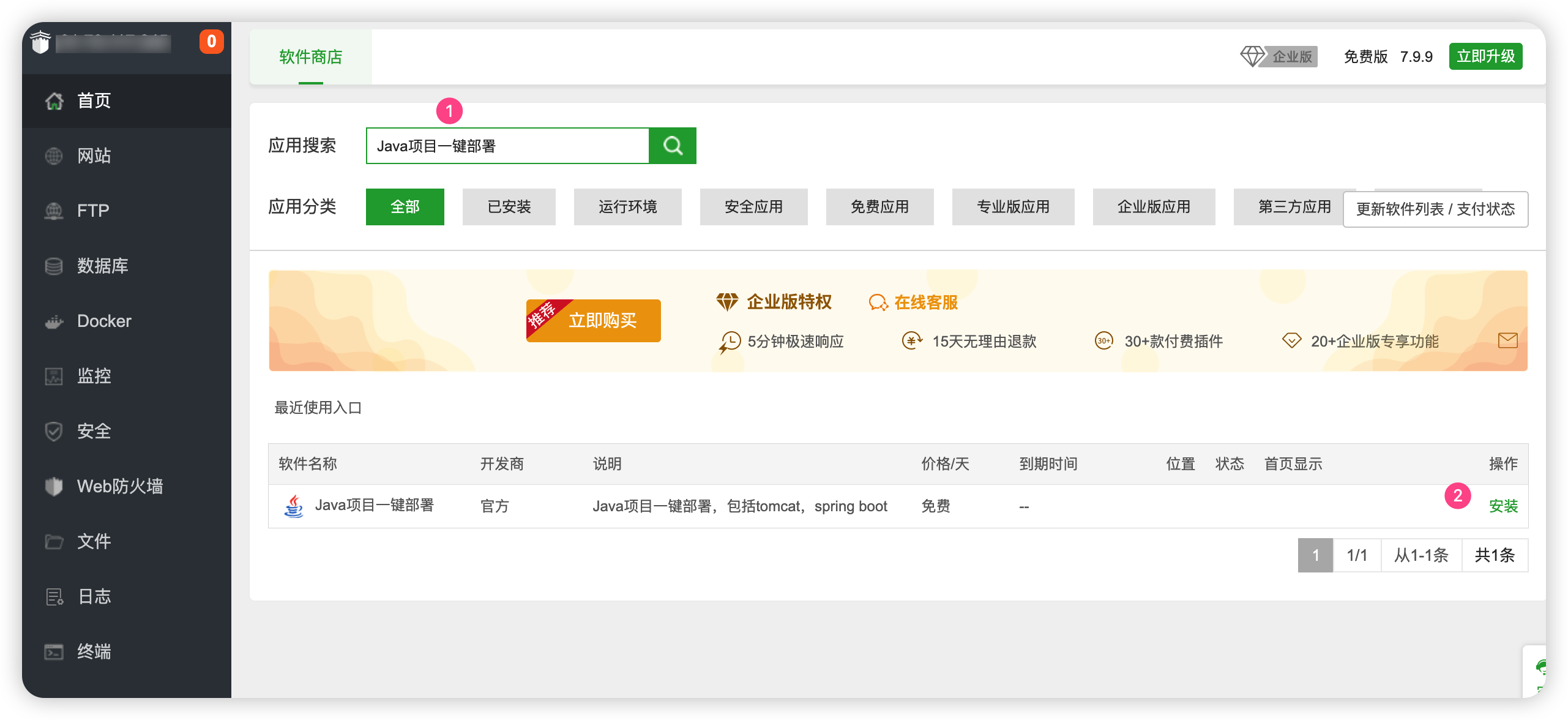
Go to Software Store and search for Java, then install Java Project One-Click Deployment.
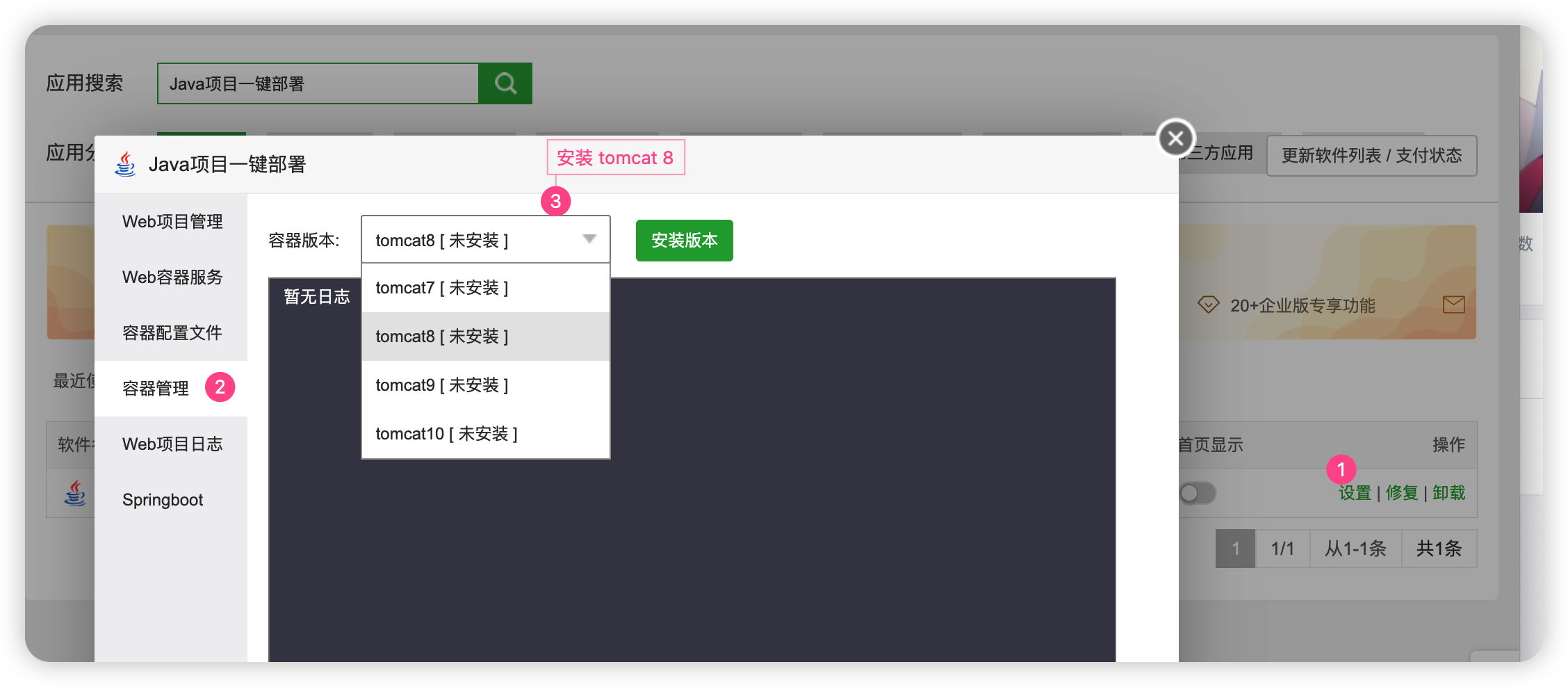
After installation, open the settings and install Tomcat 8 under Container Management. Tomcat 8 will also install JDK along with it.
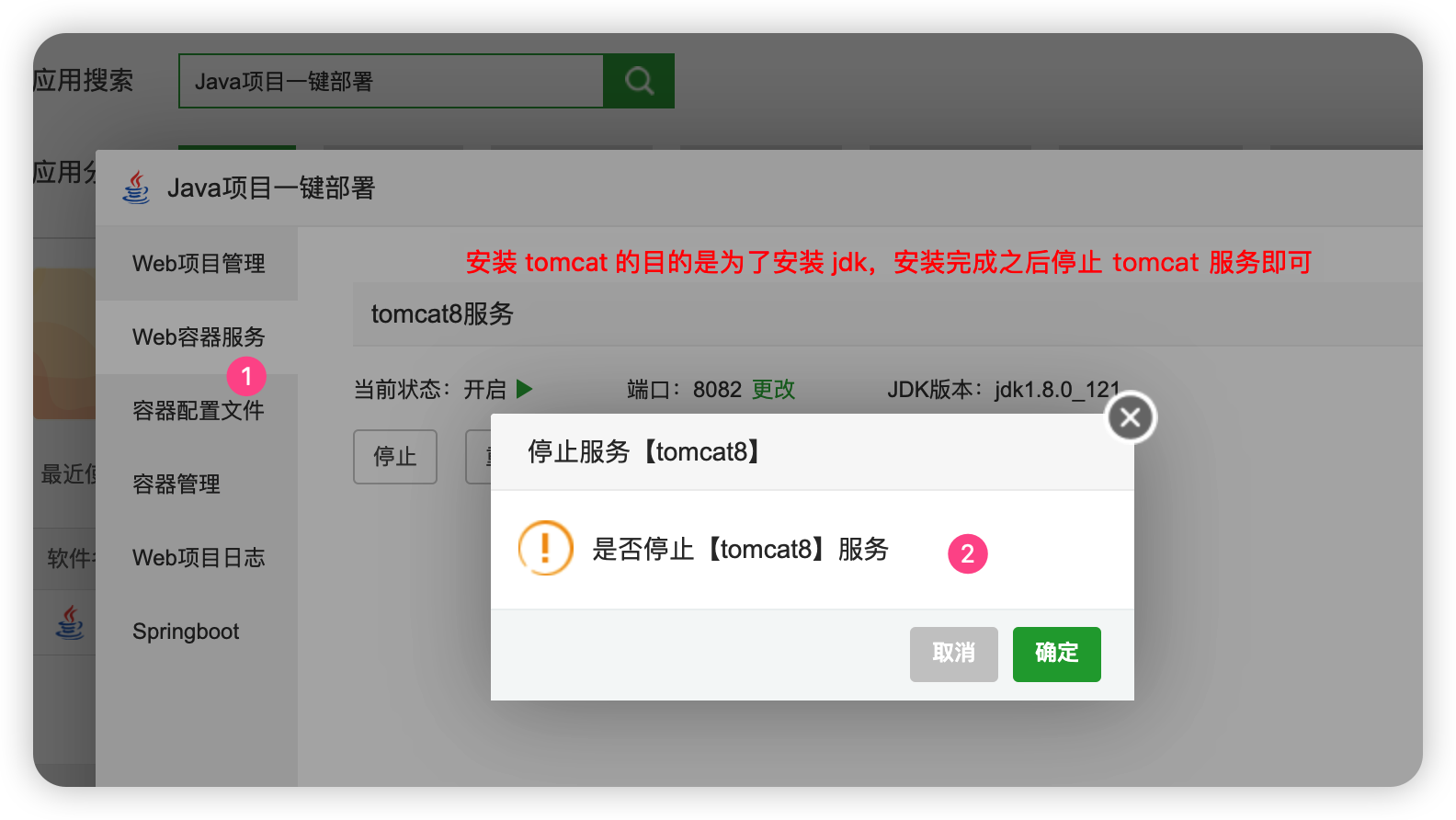
Stop the Tomcat service. SurveyKing runs in JAR mode, so it doesn't need Tomcat running continuously.
3. If Using MySQL, Create an Empty Database First
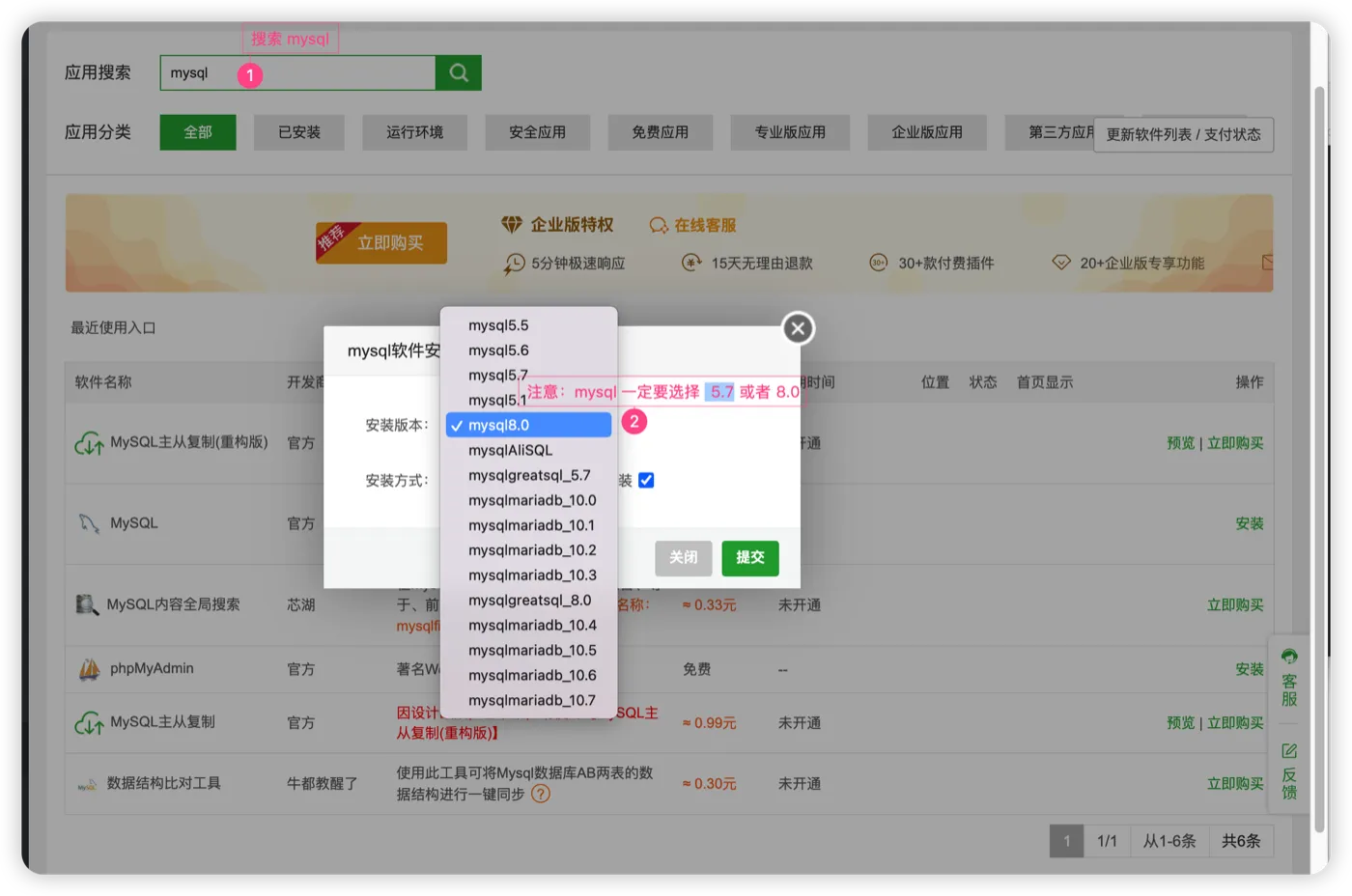
If you are just testing, you can skip this step and select H2 Embedded Database on the /setup page. For production use, it's recommended to install MySQL. Go to the Software Store in the left sidebar of aaPanel and install MySQL, choosing version 5.7 or 8.0.
After installation, go to Database, initialize the MySQL root password. You can use surveyking as an example password; for production use, it's recommended to use a more complex password.
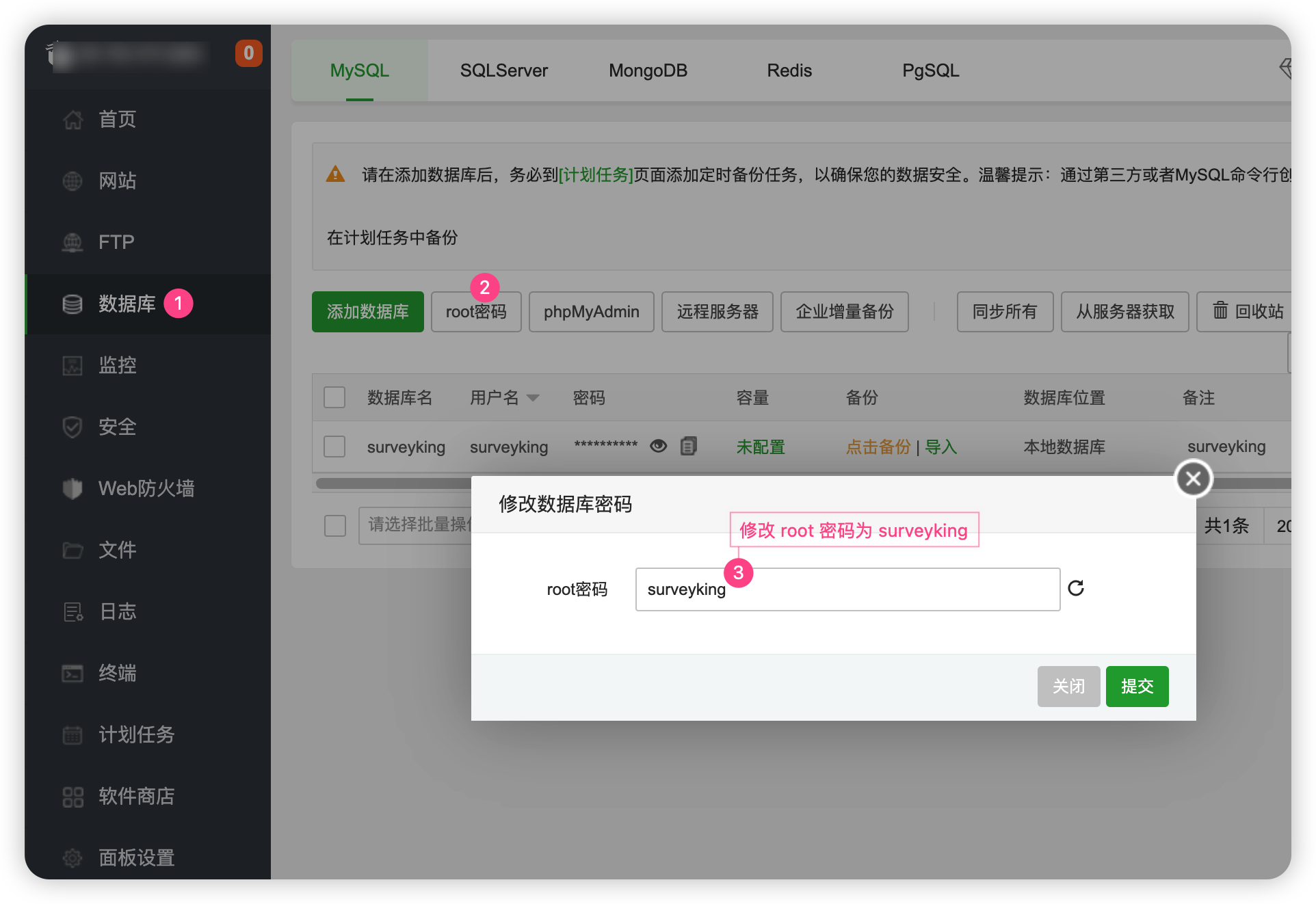
Create the database:
surveyking
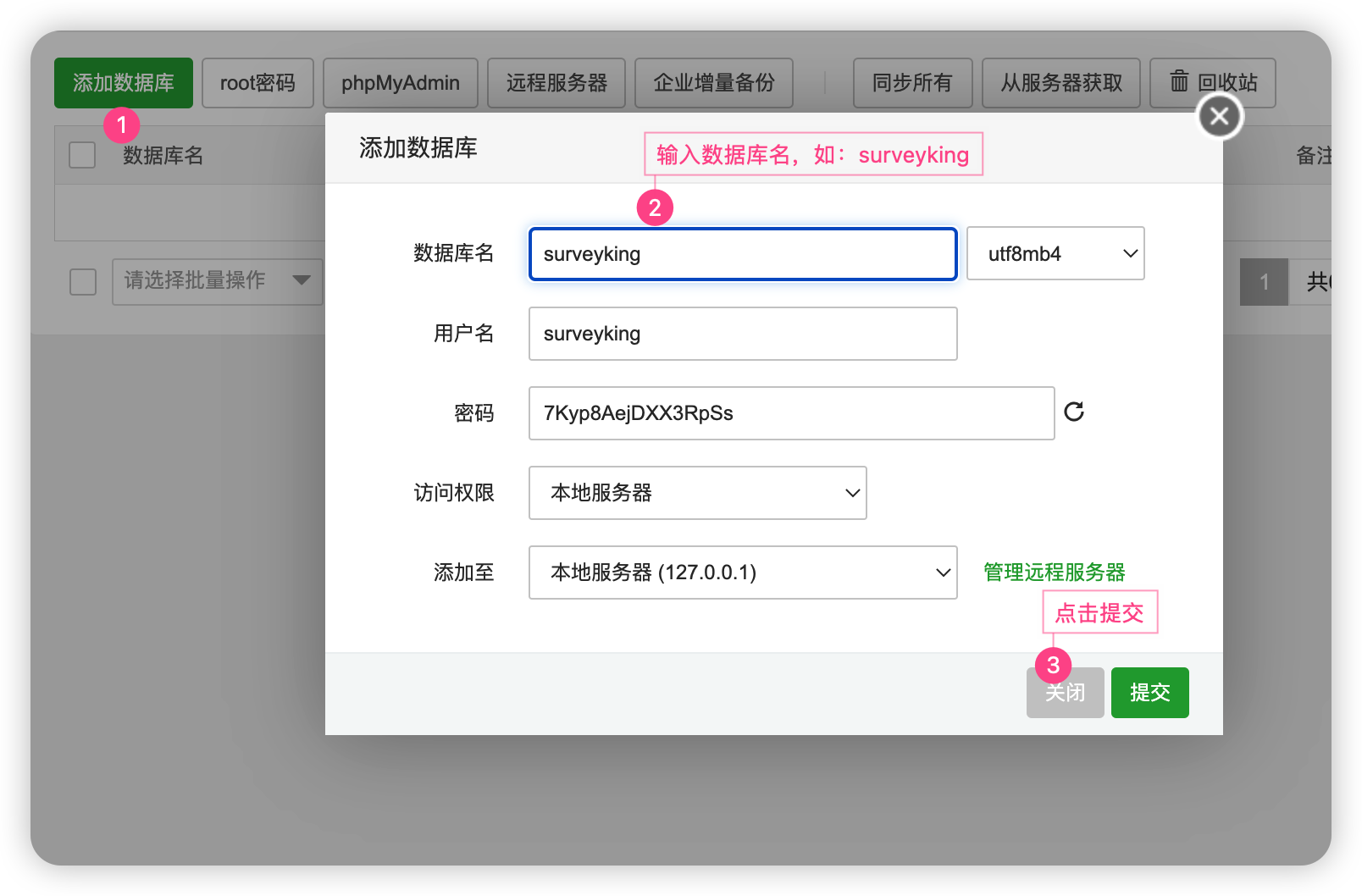
This only creates an empty database; do not manually import the SQL file. The system will automatically initialize the table structure and default data when you open it for the first time.
4. Upload JAR and Add Java Project
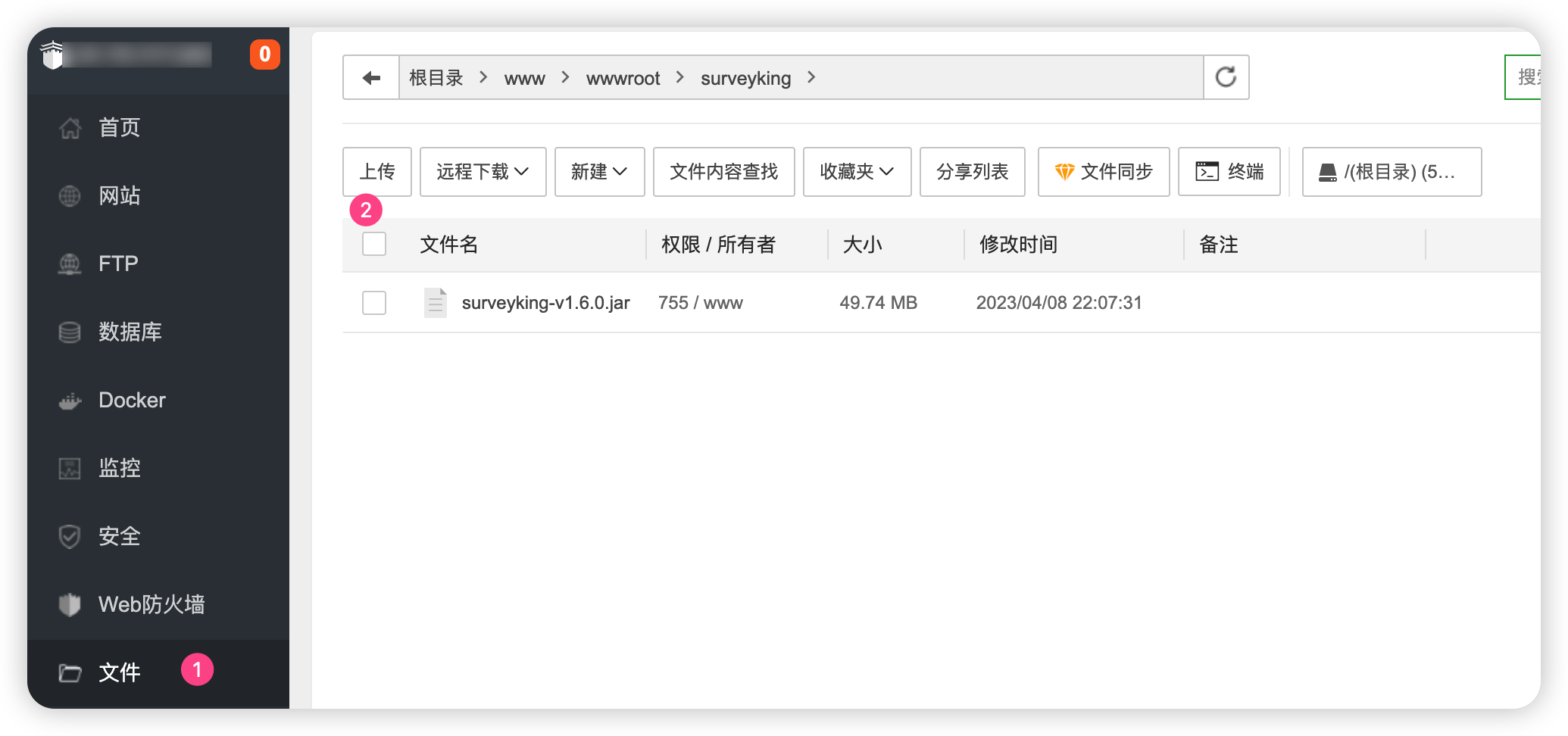
In aaPanel, go to File -> Website. Create a new directory, such as:
/www/wwwroot/surveyking
Upload surveyking.jar to this directory.
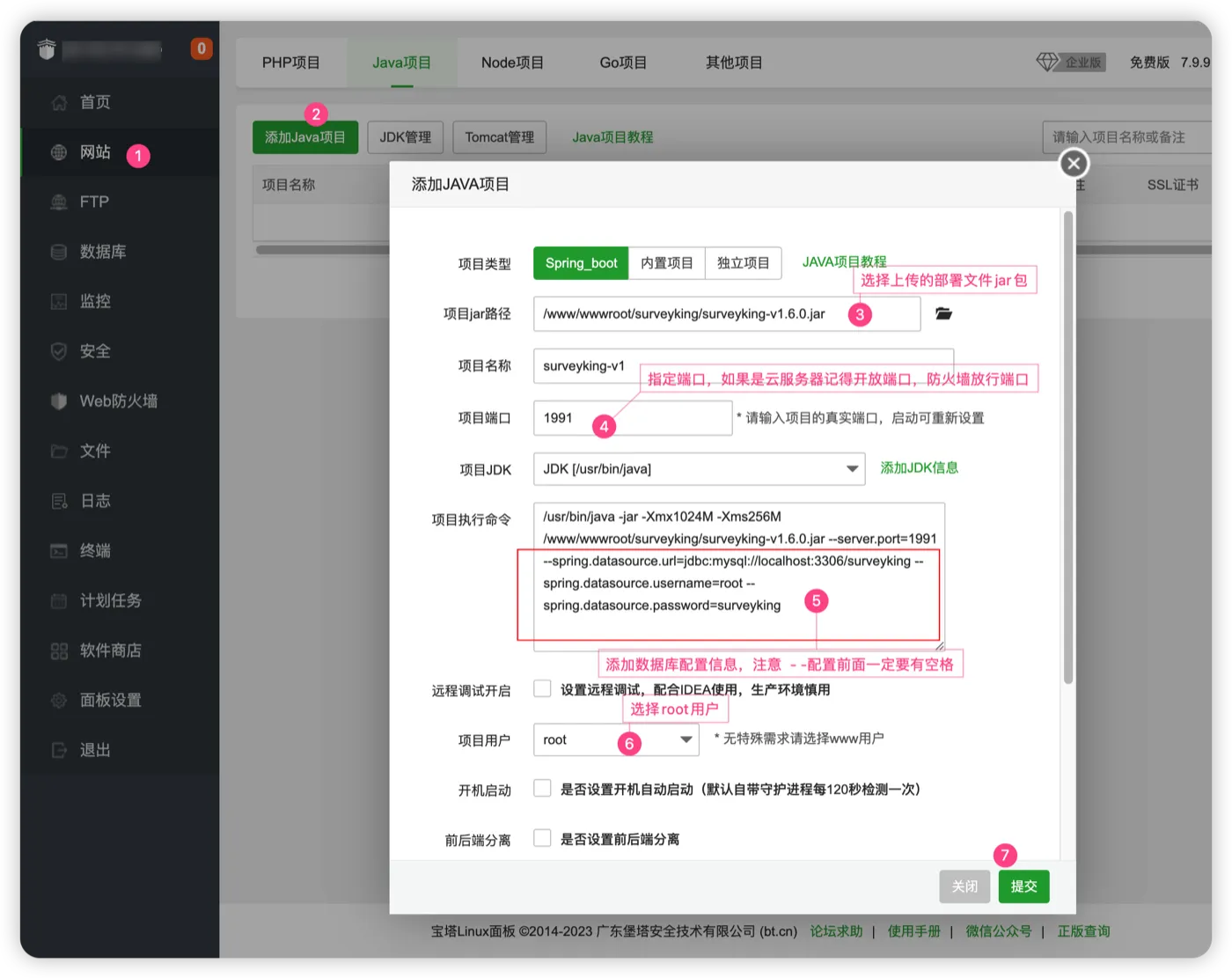
Go to Website -> Java Project -> Add Java Project.
Fill in the following information:
| Configuration | Value |
|---|---|
| Jar Path | Select the uploaded surveyking.jar file |
| Port | 1991, or any other port you prefer |
| Run User | root to avoid permission issues when uploading files |
For version v1.12.0, you don't need to add database parameters in the project execution command. Database connection information can be filled in on the /setup page.
5. Open /setup to Complete Initialization
Access the system through your browser:
http://server_public_ip:1991
Replace 1991 with the actual port if you have set a different one.
The first time you open it, you will enter the /setup page.
- Trial Use: Select H2 Embedded Database.
- Production Use: Select MySQL Database, and choose "Other MySQL Service" as the deployment method.
Fill in the database information as follows:
| Configuration | Value |
|---|---|
| Database Address | localhost |
| Port Number | 3306 |
| Database Name | surveyking |
| Username | root or your created user |
| Password | The password you set in step 3 |
Then, follow the steps in Initialization, Backup, and Upgrade to fill in system information and complete initialization. If you choose MySQL, the system will automatically restart; wait a moment before entering the login page.
6. Log In and Change Password
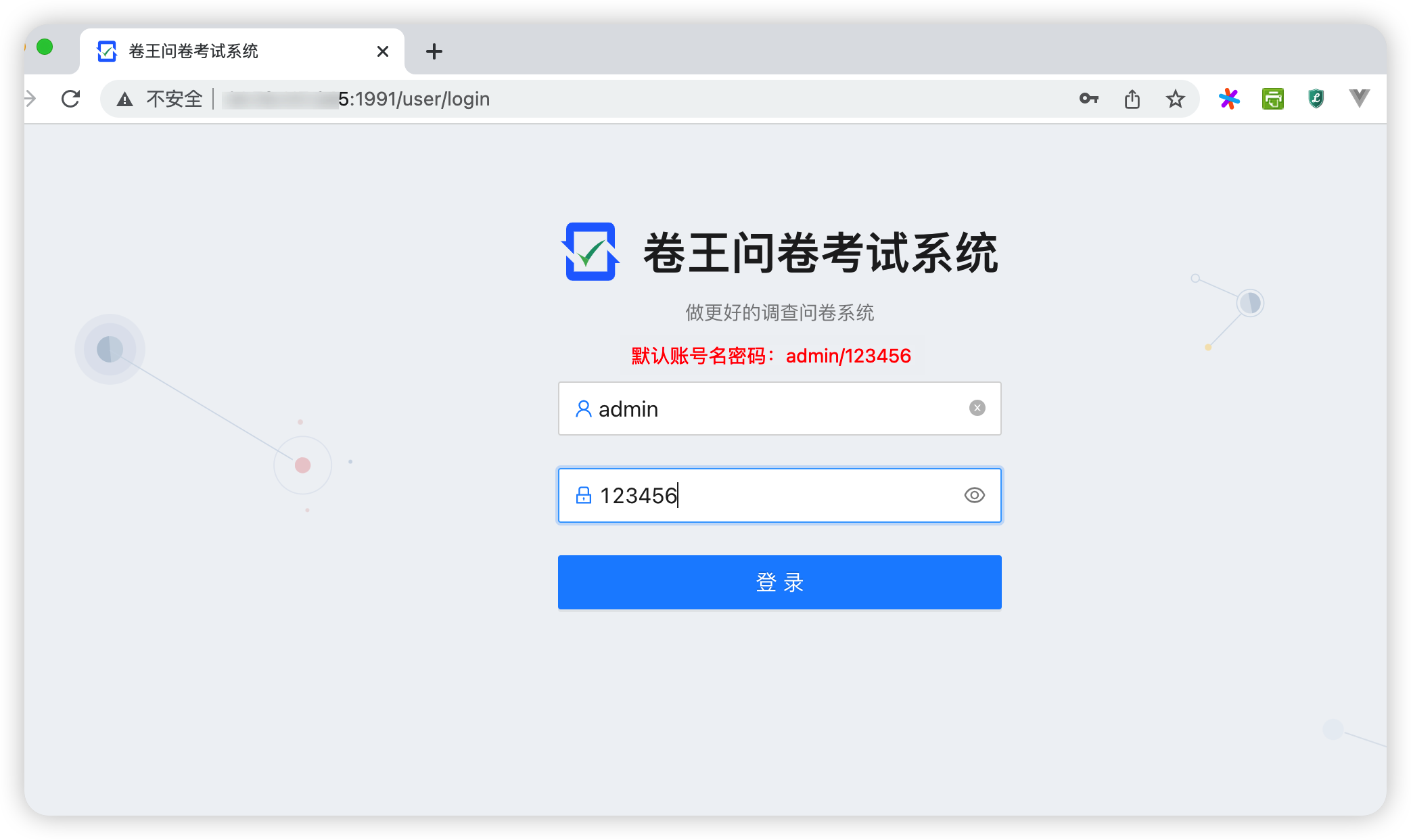
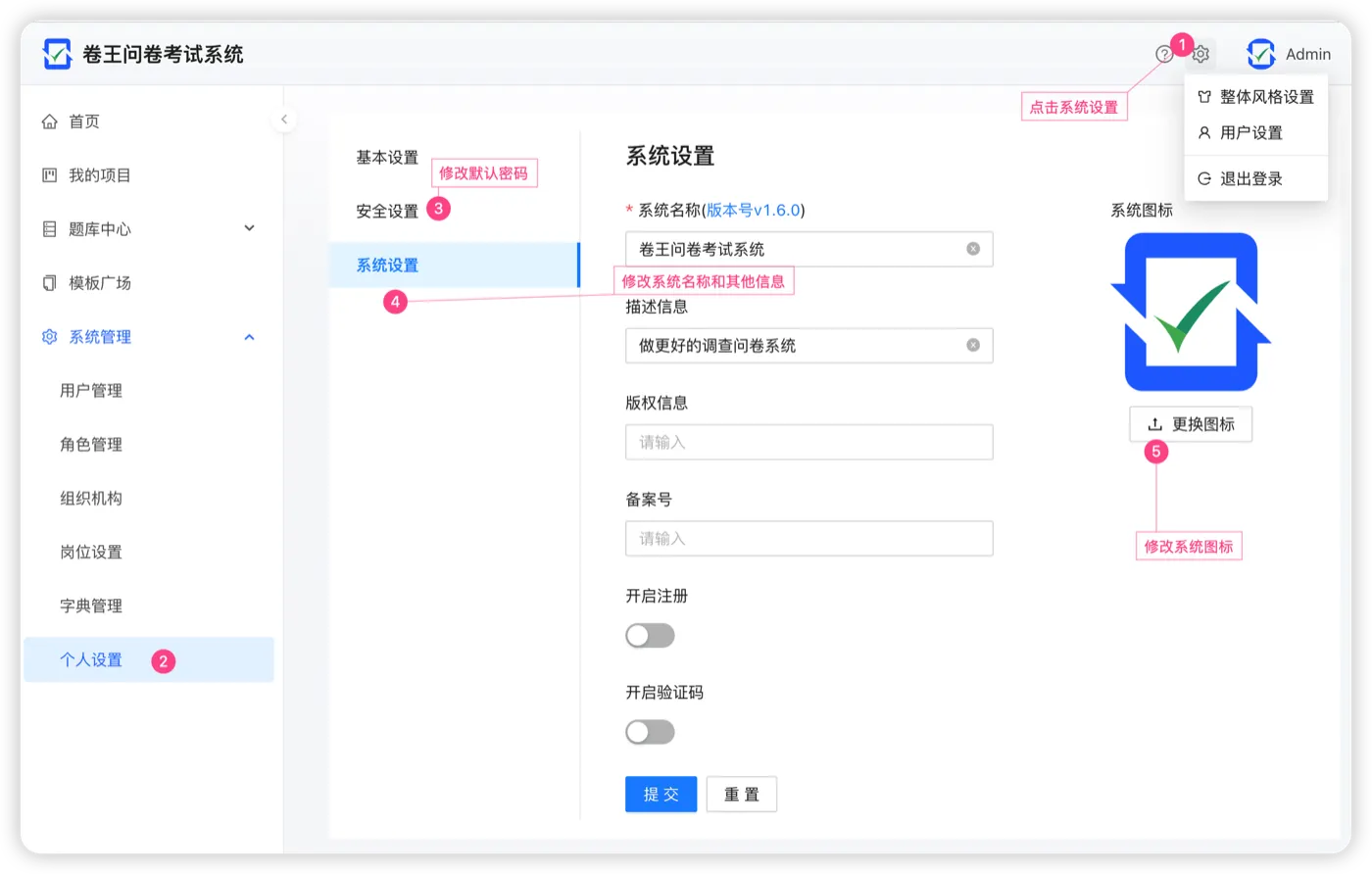
After initialization is complete, log in with the default account described in Initialization, Backup, and Upgrade, and immediately change your password.
You can also go to System Settings to modify system name, icon, etc.
Frequently Asked Questions
Why do I end up on the /setup page instead of the login page after opening it?
This is the initial setup page for version v1.12.0. The system first needs to confirm whether you are using H2 or MySQL.
Follow the steps in Initialization, Backup, and Upgrade to complete initialization before accessing the system.
What should I do if the MySQL initialization fails?
Check the following:
- The MySQL version is
5.7or8.0. - The database name is
surveyking. - The database address is set to
localhost. - The username and password are correct.
- The aaPanel MySQL service is running.
Do not manually import the init-mysql.sql file, nor add old version database parameters in the project execution command.
Why can't I access localhost:1991 on my mobile phone?
localhost only refers to the current device. When a mobile phone enters localhost, it accesses itself, not the server.
To access the aaPanel server from your mobile phone, use:
http://server_public_ip:1991
If it doesn't open, check your cloud service provider's security group, aaPanel firewall, and project port.
Why does the project fail to start, and where should I look for the error?
Go to Website -> Java Project, find the SurveyKing project, and view the project logs.
Prioritize looking at the last few lines of errors. Common errors include port conflicts, incorrect JAR path selection, Java environment not installed correctly, or file upload permissions issues.
How do I upgrade?
First export a backup, then replace the new version JAR or redeploy the new version.
See Initialization, Backup, and Upgrade for detailed steps.
Get Help
If you encounter bugs or need new features, you can provide feedback through the following ways:
- Feedback Form
- Gitee Issues
- GitHub Issues
- QQ Group:
1074277968
If you have successfully deployed, please star the project on Gitee Repository.